Wi-Fi 6 Router Setup for Smart Home: A Comprehensive Guide
Introduction
Setting up Wi-Fi for smart home devices doesn't have to be complicated. By understanding your network needs, choosing the right equipment, and following the steps outlined here, you can create a seamless and secure smart home experience. With a proper setup, your smart devices will enhance convenience, security, and efficiency in your everyday life.Transforming Your Home into a Smart Oasis
Choosing the best router for smart home devices is a crucial step towards ensuring seamless connectivity and optimal performance. In this guide, we'll unveil top-tier routers specifically engineered to handle the demands of a modern smart home ecosystem. From robust Wi-Fi coverage to advanced security features, these routers are designed to provide a seamless and secure Wi-Fi experience for your smart devices.Understanding Wi-Fi 6 Technology
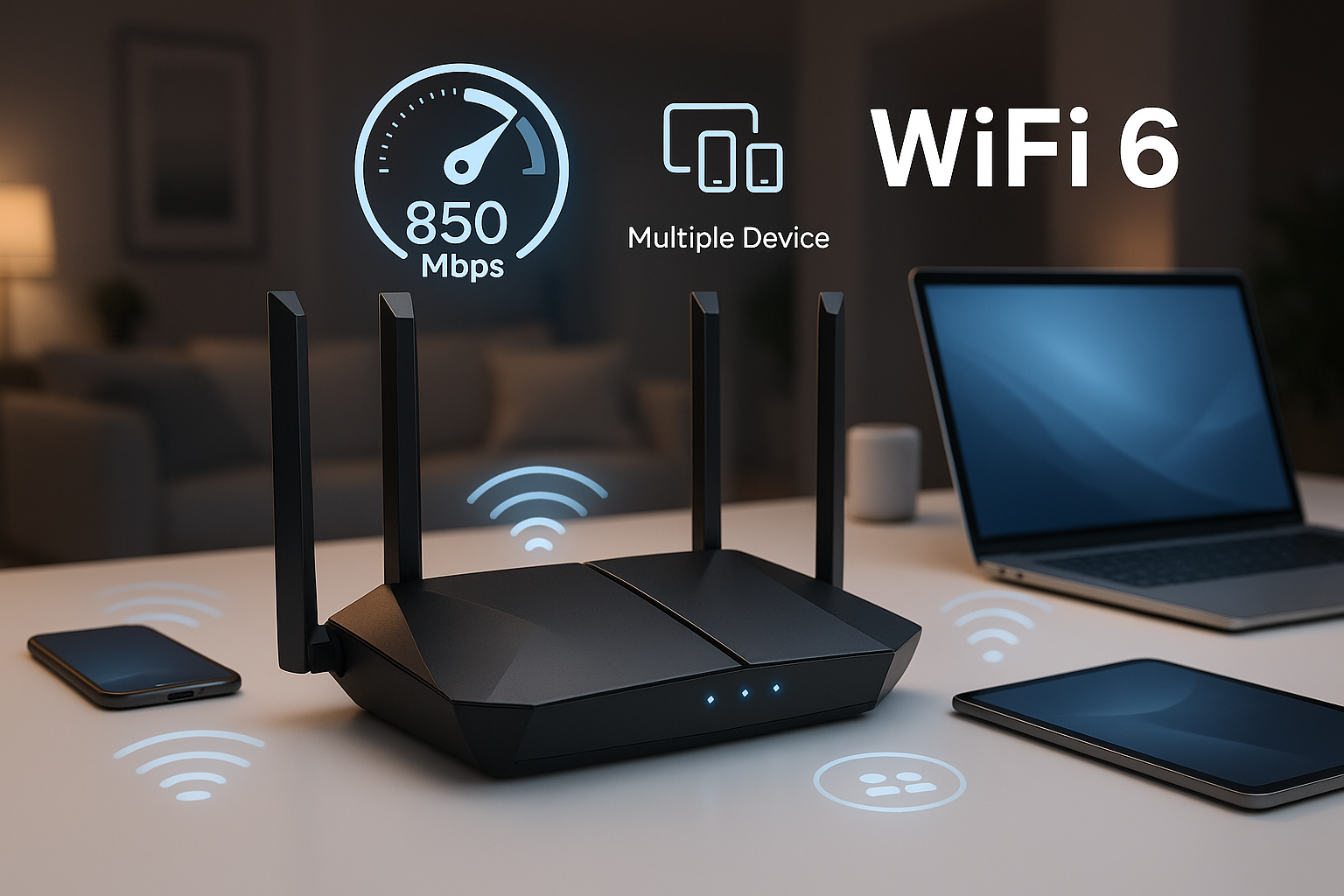
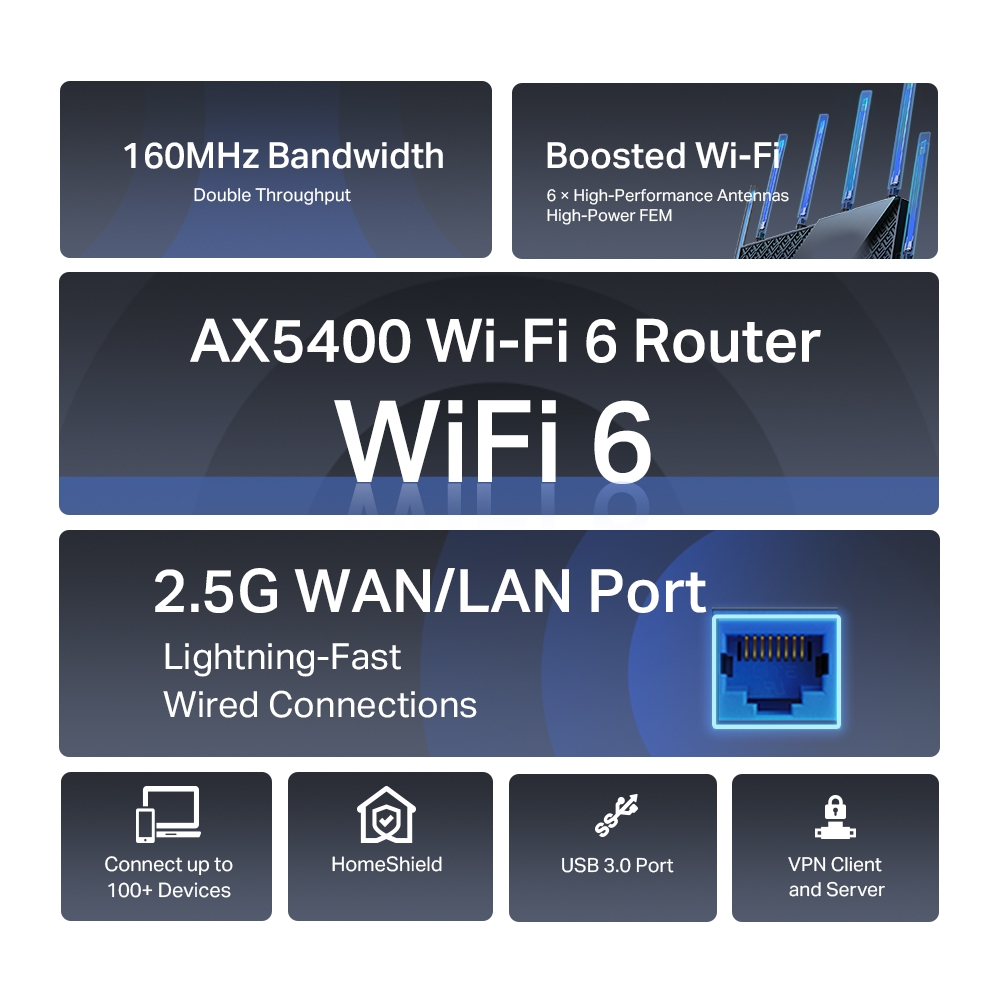
Wi-Fi 6 (802.11ax) is the latest Wi-Fi standard that promises faster speeds, lower latency, and improved capacity. With Wi-Fi 6, you can enjoy a stable and reliable connection across your home, even with multiple devices connected at the same time. To get the most out of your Wi-Fi 6 router, you'll need to choose a device that supports this standard and follow the proper setup and configuration steps outlined in this guide.Choosing the Right Wi-Fi 6 Router
When selecting a Wi-Fi 6 router, consider the following factors: *- Wi-Fi 6 support: Ensure the router supports the latest Wi-Fi 6 standard
- Speed and capacity: Choose a router that offers high speeds and large capacity to handle multiple devices
- Range and coverage: Select a router that offers long-range coverage and robust signal strength
- Security features: Consider a router with advanced security features, such as WPA3 encryption and network segmentation
- Ease of use: Choose a router with a user-friendly interface and intuitive setup process
Setting Up Your Wi-Fi 6 Router
To set up your Wi-Fi 6 router, follow these steps: 1.Unbox and physically install the router in a central location, away from thick walls or large appliances.
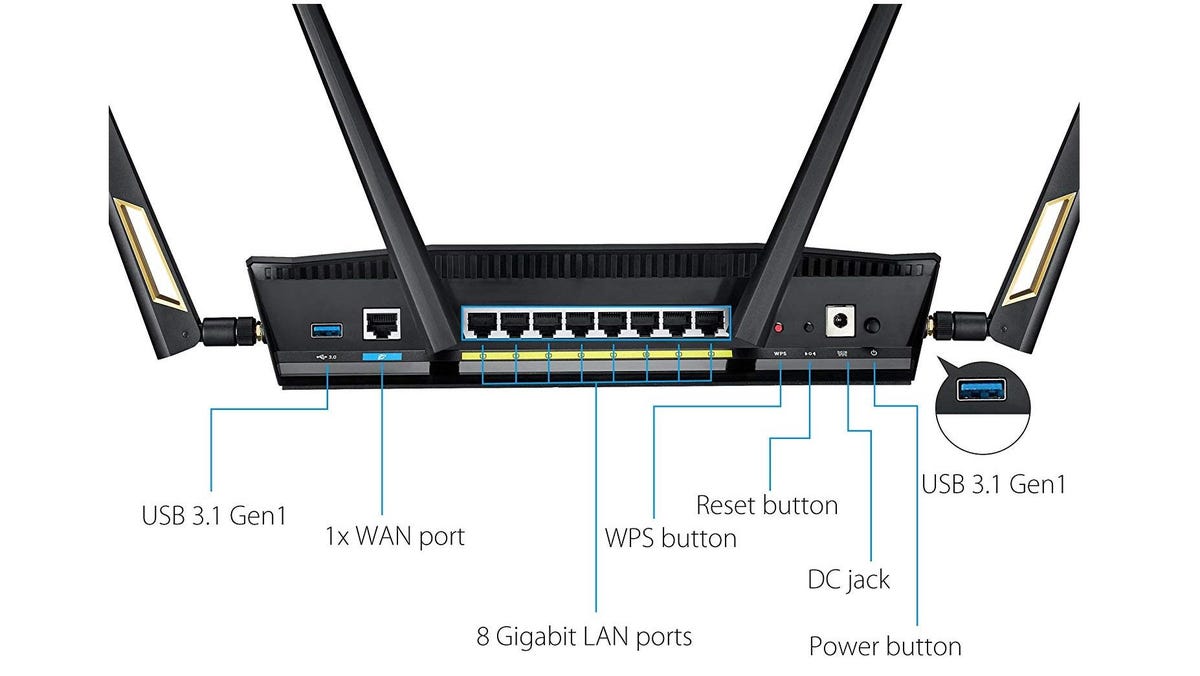
2.Connect the modem to the router using an Ethernet cable.

Power on the router and wait for it to complete the boot process.
4.Access the router's web interface using a web browser and a device connected to the router's Wi-Fi network.
5.Configure the router's network settings, including the Wi-Fi network name, password, and channel.
6.Set up the router's security features, such as WPA3 encryption and network segmentation.
7.Test the router's performance using tools such as Wi-Fi Analyzers to ensure optimal connectivity and performance.
Optimizing Your Home Wi-Fi Network
To optimize your home Wi-Fi network, follow these tips: *- Place the router in a central location to ensure even coverage.
- Use a Wi-Fi analyzer tool to identify and avoid channels that may interfere with your network.
- Update the router's firmware regularly to ensure you have the latest security patches and feature enhancements.
- Use Quality of Service (QoS) settings to prioritize critical applications and ensure smooth performance.

![[Top 7] Best Router For Smart Home in 2026 | Yes, WiFi 6](https://images-na.ssl-images-amazon.com/images/I/61fJGd22uDL.jpg "[Top 7] Best Router For Smart Home in 2026 | Yes, WiFi 6")

![[Smart home Master] How to set up IoT Network? - ASUS](https://m.media-amazon.com/images/I/61JZRdMyX1L._AC_SL1500_.jpg "[Smart home Master] How to set up IoT Network? - ASUS")