Setting Up a G Router: A Step-by-Step Guide
Getting your new wireless router set up doesn't need to be complicated. If your modem has a built-in router, you can skip the whole process of buying one and configuring parts, and just plug it in. However, most modems do not have a built-in router, so you will need to buy a separate router and set it up. In this article, we will walk you through the process of setting up a G router.
Getting Started
Before you start setting up your router, make sure you have all the necessary equipment and cables. You will need a G router, a modem, and Ethernet cables to connect your devices to the router. You may also need a power cord and a cordless phone receiver.
- Unpack your router and modem, and make sure you have all the necessary accessories, such as the power cord and Ethernet cables.
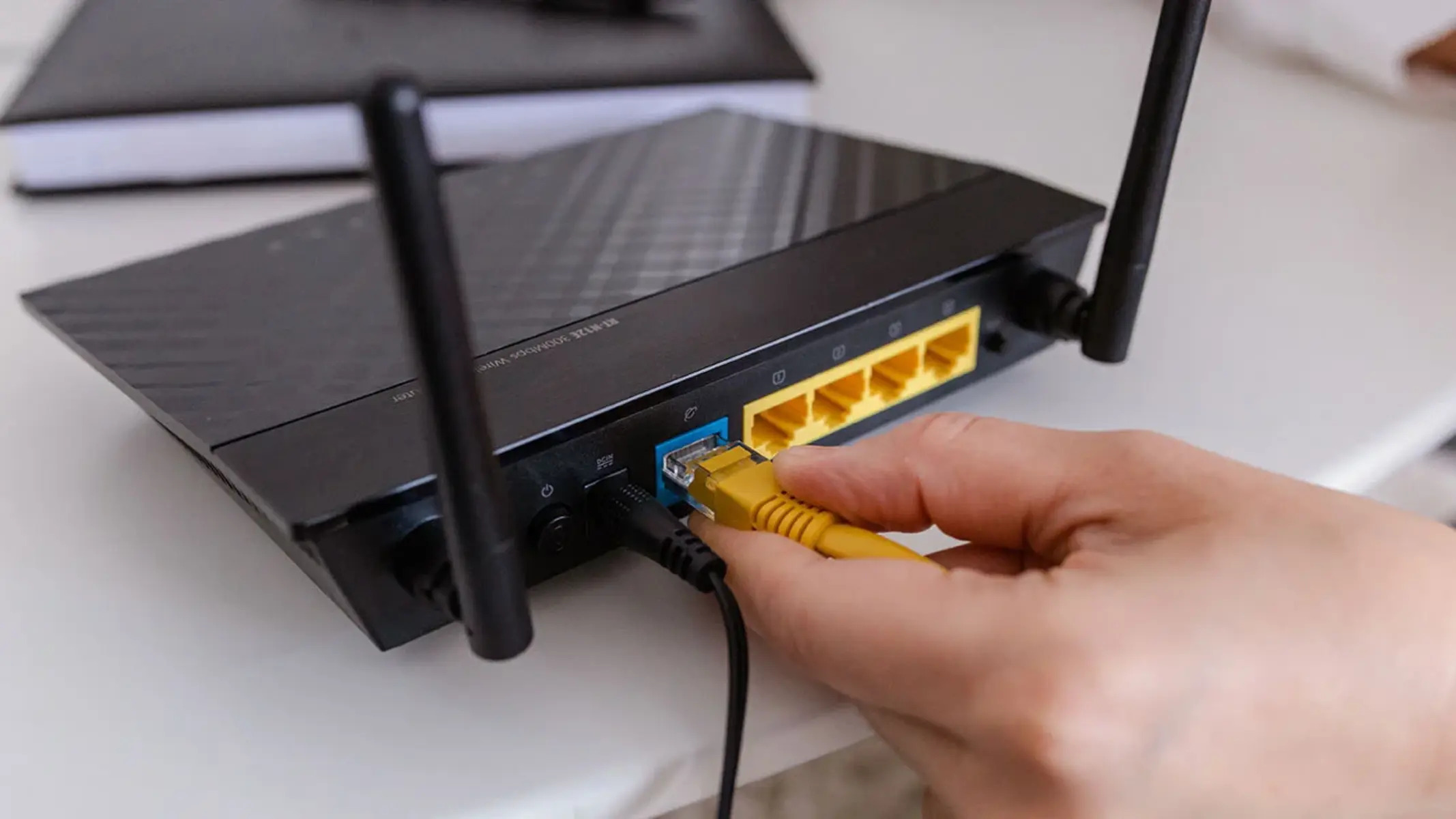
- Connect the modem to the WAN port on the router using an Ethernet cable.
- Connect the power cord to the router and turn it on.
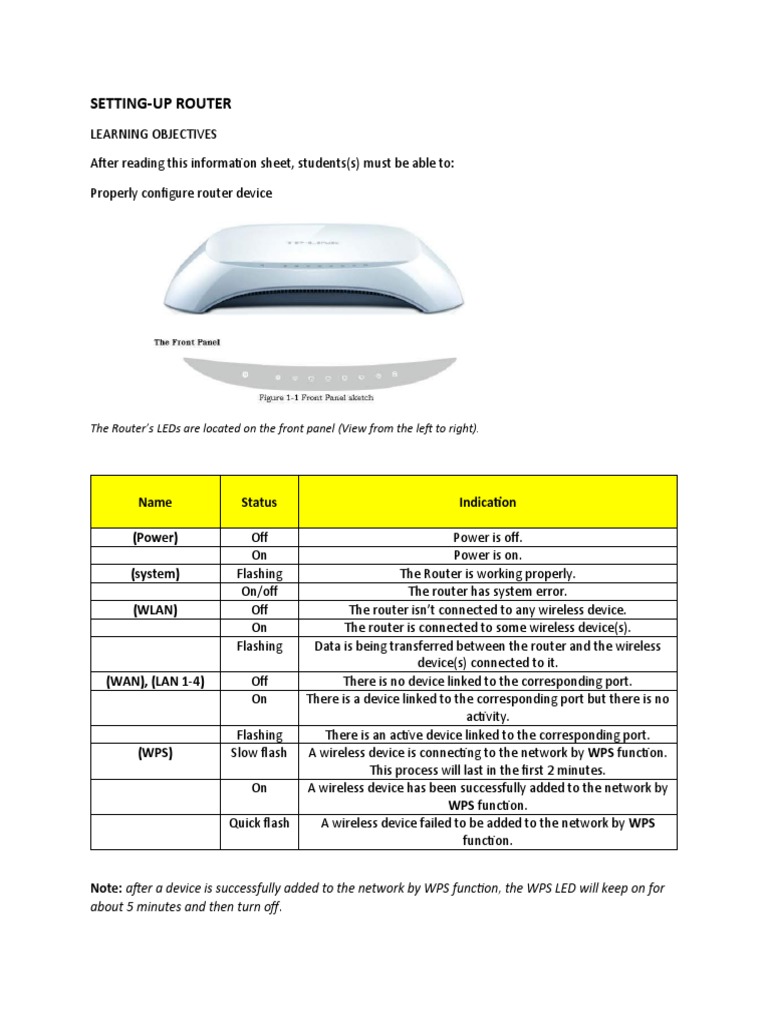
- Wait for the router to boot up and the lights to stabilize. This may take a few minutes.
Setting Up the Router
Once the router is booted up, you can start setting it up. The process will vary depending on the make and model of your router, but most routers have a similar setup process.
- Open a web browser and type the router's IP address in the address bar. The default IP address is usually 192.168.0.1 or 192.168.1.1.
- Press Enter to load the router's login page.
- Enter the router's admin username and password. The default username and password are usually printed on the underside of the router or in the user manual.
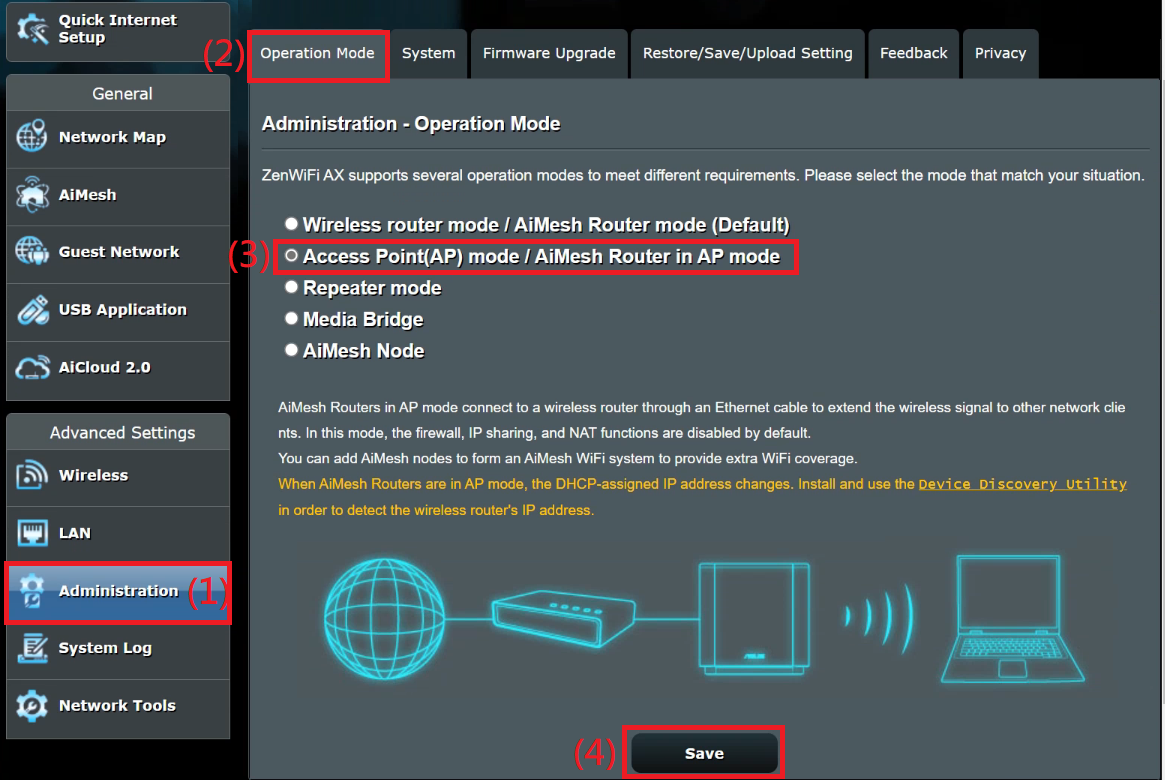
- Click on the "Login" button to access the router's settings.
- Change the admin username and password to something more secure. This will help protect your router from unauthorized access.
- Set up the wireless settings, including the network name (SSID), password, and channel. You can also set up any additional features, such as guest networking or Quality of Service (QoS).
- Save your changes and reboot the router to apply the new settings.
Connecting Devices to the Router
.png)
Once the router is set up, you can start connecting devices to it. This includes computers, smartphones, tablets, and other wireless devices.
- Connect devices to the router using Ethernet cables or wirelessly using the router's Wi-Fi network.
- Make sure all devices are connected to the same network and have the correct IP address settings. You can do this by checking the device's network settings and ensuring they match the router's settings.
- Test the internet connection by browsing to a website or checking email. If the connection is slow or unstable, try restarting the router or repairing the wireless signal.
Troubleshooting
Setting up a router can be a complex process, and problems can arise. If you encounter any issues during setup or connectivity, try troubleshooting as follows:
- Restart the router and modem to reset the network.
- Check the router's settings and ensure that the wireless settings are correct.
- Check the device's network settings and ensure that they match the router's settings.
- Try resetting the router to its factory settings and reconfiguring it from scratch.
- Contact the router's manufacturer or a professional technician for further assistance.
Conclusion
Setting up a G router can seem daunting, but with the right equipment and a step-by-step guide, it's a relatively simple process. Remember to change the admin username and password, set up the wireless settings, and connect devices to the router. If you encounter any issues, try troubleshooting and contact a professional technician if necessary.







![[Wireless Router] How do I enter my ASUS router's setting page using ...](https://networkbuildz.com/wp-content/uploads/2023/12/How-To-Use-Router-Bridge-Mode-for-Router-Bridge-Mode-VS-Access-Point.png "[Wireless Router] How do I enter my ASUS router's setting page using ...")

