Configure Your Wireless Network Name and Password
With the increasing importance of wireless connectivity, setting up and configuring your wireless network name and password is a crucial step in securing your home or office network. In this article, we will walk you through the process of changing your Wi-Fi network name and password, providing you with the necessary information to create a secure and stable wireless network.
Why Change Your Wireless Network Name and Password?
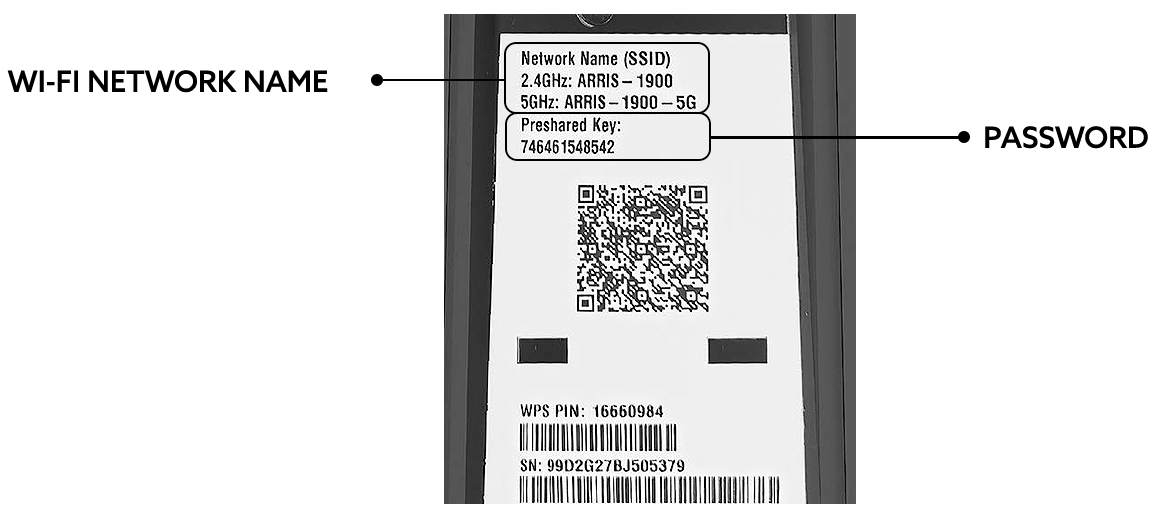
It is essential to change your wireless network name and password from time to time to maintain optimal security. A hacker can easily gain access to your network by obtaining your default network name and password. By changing your network name and password regularly, you can prevent unauthorized devices from connecting to your network and reduce the risk of cyber attacks.
Step-by-Step Guide to Configuring Your Wireless Network Name and Password
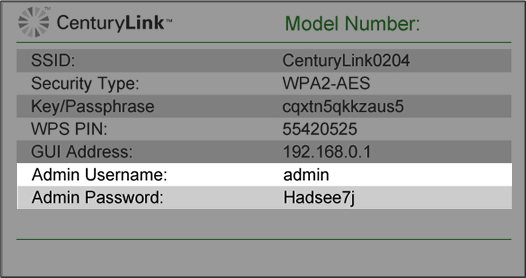
- Log in to your router's management interface through a web browser by typing the router's IP address in the address bar. The default IP address is usually 192.168.1.1 or 192.168.0.1.
- Enter your admin username and password to access the router's settings. If you have forgotten your admin password, you may need to reset your router to its factory settings.
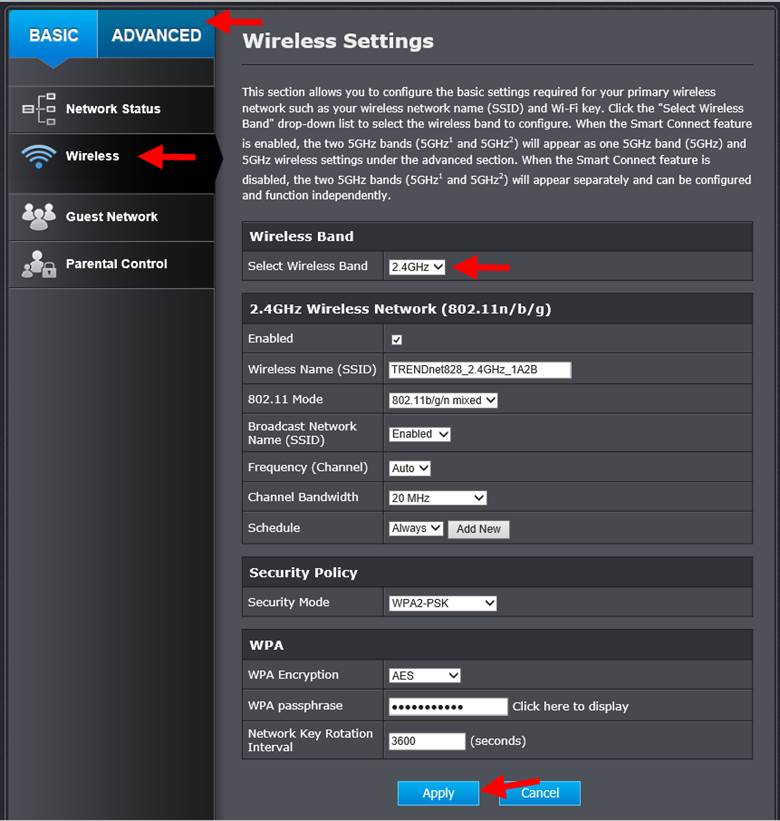
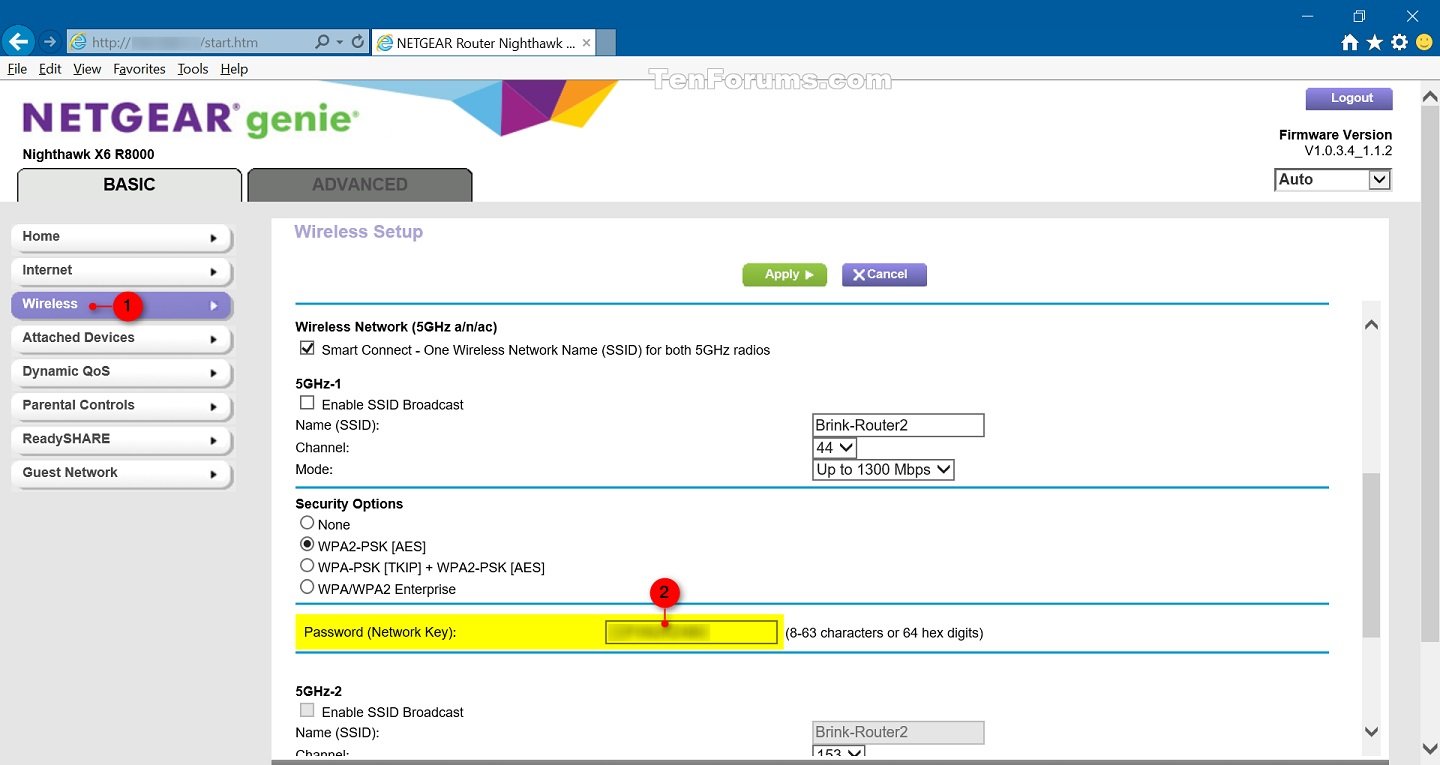
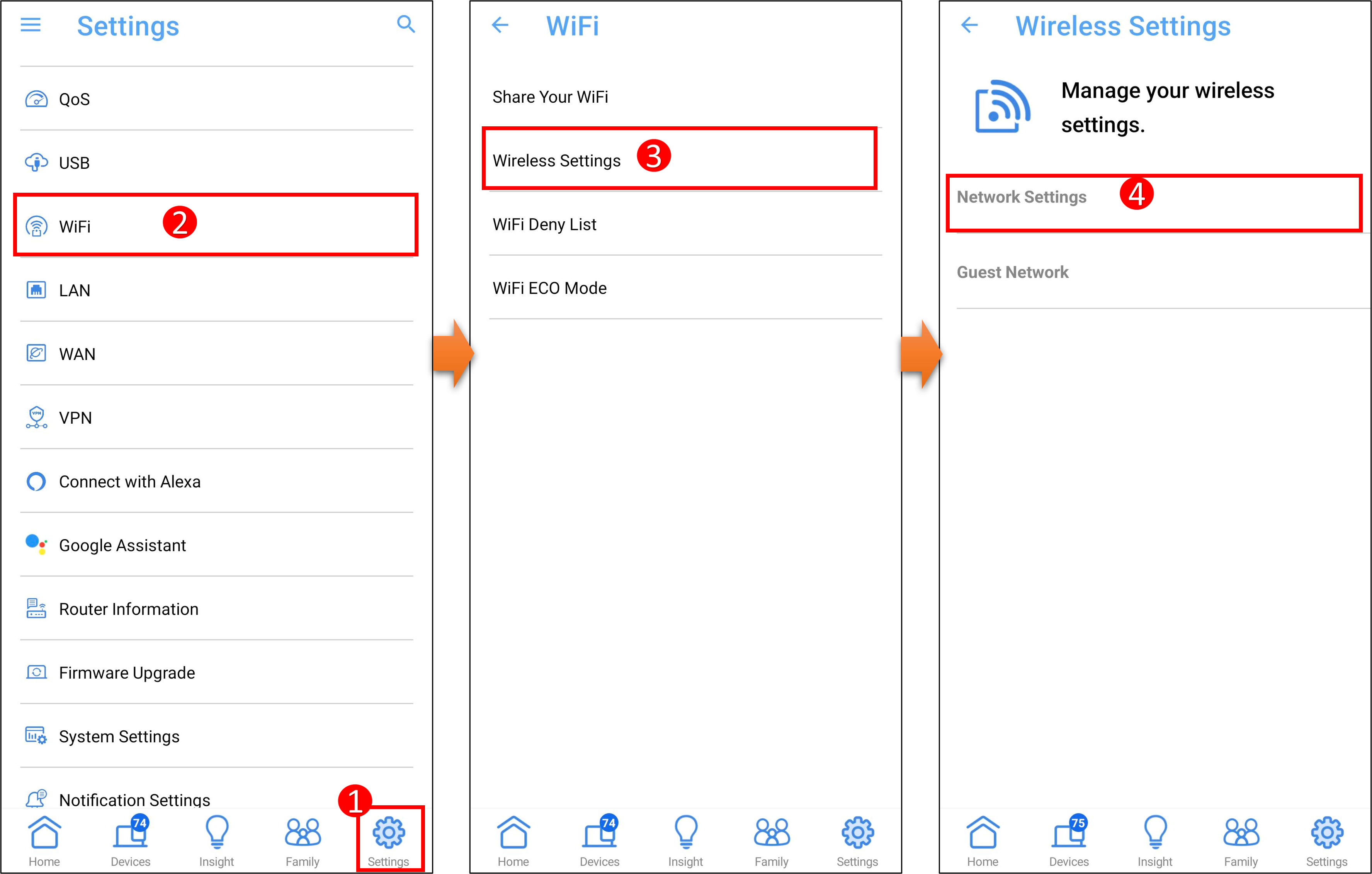
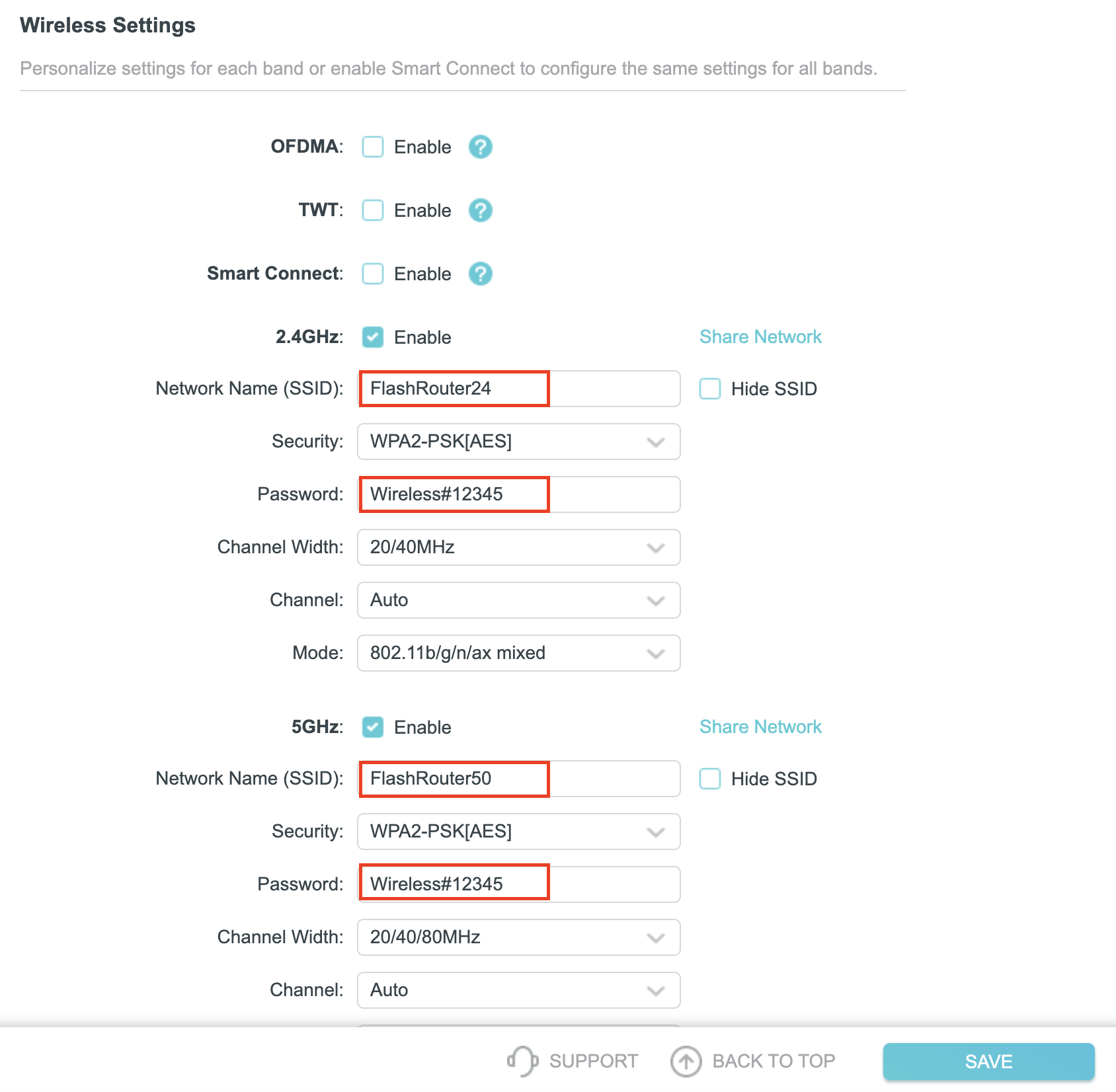
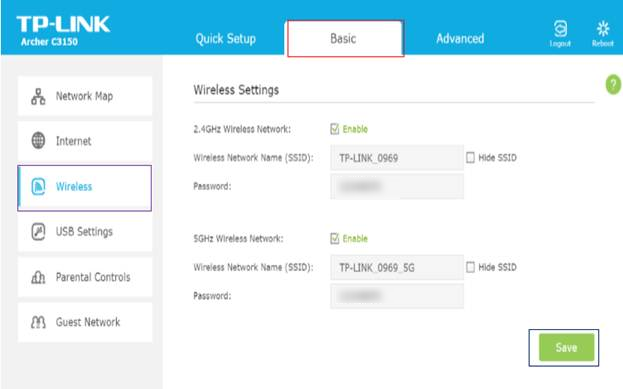
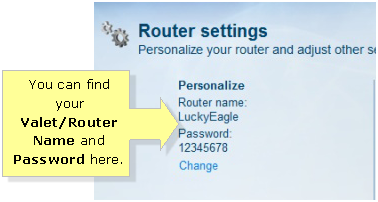
- Click on the "Wireless Settings" tab and select the "Wireless Network Name" (SSID) field.
- Enter your desired network name, making sure it is unique and not easily guessable.
- Click on the "Authentication" or "Security" tab and select the encryption method you prefer (WEP, WPA, or WPA2).
- Enter your desired password and re-enter it in the "Confirm Password" field to ensure it is correct.
- Click on the "Save" or "Apply" button to save your changes.
Setting Up Your Wireless Network for the First Time
If you are setting up your wireless network for the first time, you will need to follow the manufacturer's instructions for your specific router. Some routers may require you to create an admin account and set the router's username and password before configuring the wireless settings.
Securing Your Wireless Network
- Use a unique and complex password that is at least 12 characters long.
- Change your network password regularly (every 60-90 days).
- Use WPA2 encryption (or WPA3 if available) for the highest level of security.
- Limit the number of devices connected to your network.
Troubleshooting Wireless Setup Issues
If you encounter issues during the wireless setup process, revisit the network settings to ensure the correct network name and password were selected. Consider moving the printer or device closer to the router to improve signal strength or restarting the router and device if connection problems persist.
Final Thoughts
Configuring your wireless network name and password is a straightforward process that requires attention to detail and a commitment to security. By following these steps and best practices, you can create a secure and stable wireless network for your home or office needs.


![[Wireless Router] How to modify Wireless(WiFi) Name and Password in ...](https://www.att.com/idpassets/images/support/internet/SSID2.jpg "[Wireless Router] How to modify Wireless(WiFi) Name and Password in ...")
:max_bytes(150000):strip_icc()/001-c3cae1cf99094cf097e88ab410c741d5.jpg "How to change WiFi Router Name and Password - The Windows Club")

![[Wireless Router] How do I enter my ASUS router's setting page using ...](https://manuals.plus/wp-content/uploads/2023/10/Configure-the-network.png "[Wireless Router] How do I enter my ASUS router's setting page using ...")