Setup Netgear Router As Access Point For Home Network: A Comprehensive Guide
Introduction
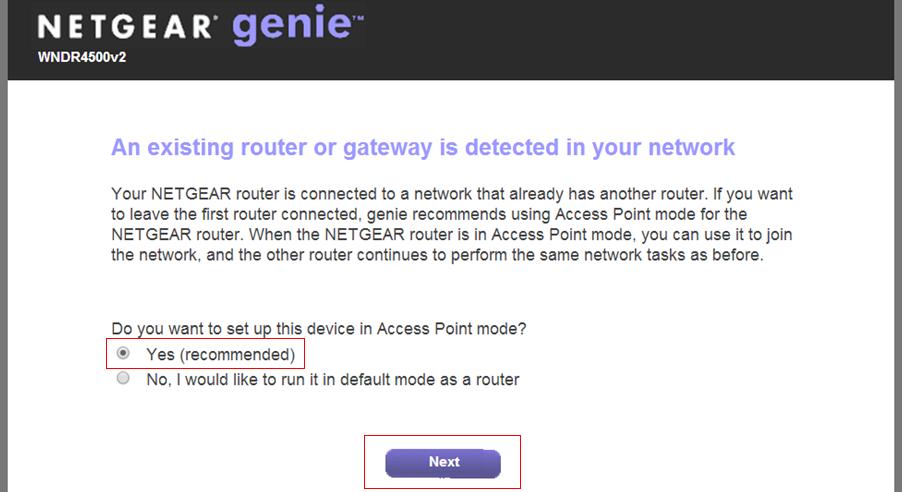
Are you tired of dead zones in your home network? Do you want to extend your wireless coverage and improve signal quality? Setting up your Netgear router as an access point (AP) can be a great solution. In this tutorial, we will guide you through the steps to set up your Netgear router as an access point for your home network.Understanding Access Points
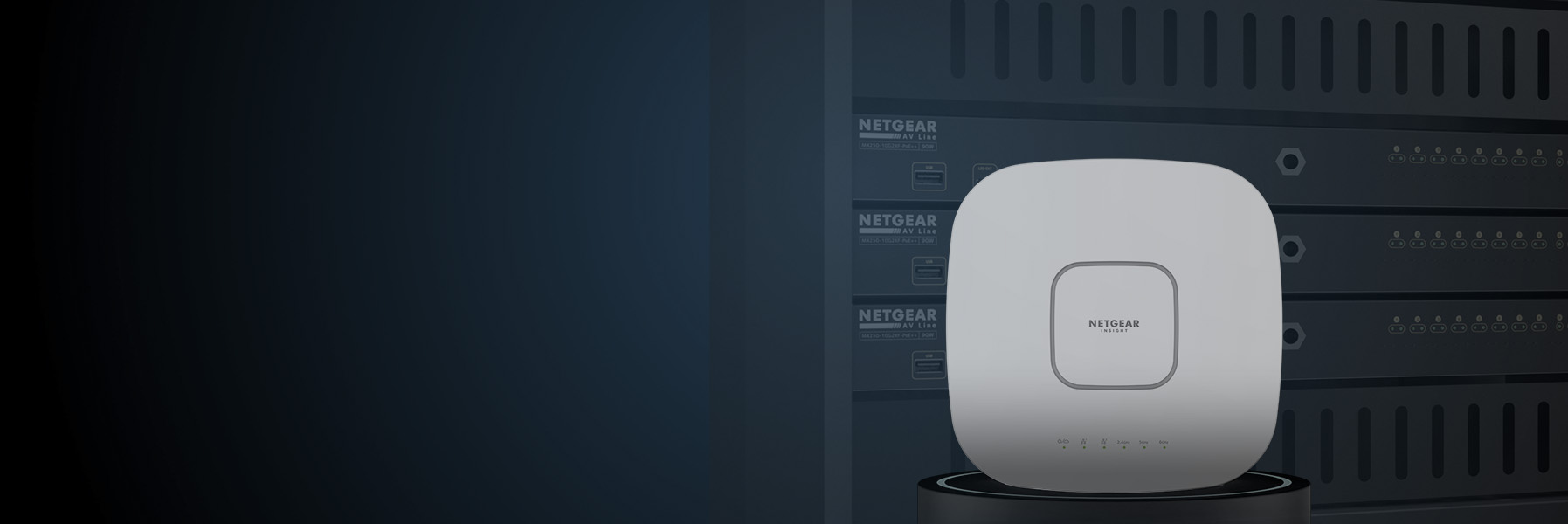
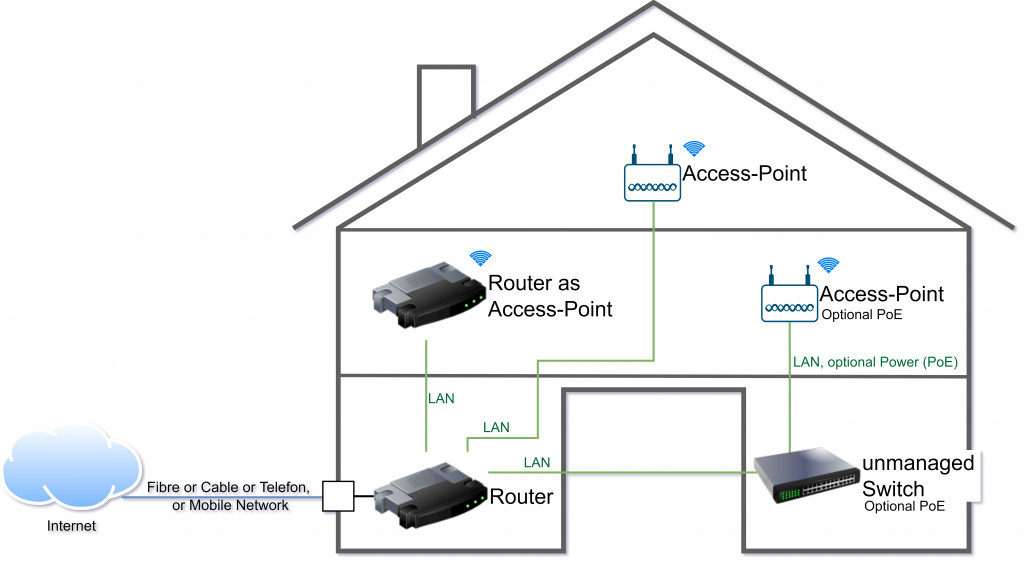
An access point is a device that creates a wireless local area network (WLAN) in your home. It acts as a bridge that connects your wireless devices to your wired network. When you set up a router as an access point, you're essentially turning your router into a dedicated Wi-Fi broadcaster that extends your existing network coverage.Benefits of Setup Netgear Router As Access Point
Using a Netgear router as an access point can help extend your wireless network and improve coverage in areas where your primary router's signal is weak. This is especially useful for large homes or offices with multiple floors. By setting up your Netgear router as an access point, you can: * Extend your wireless network coverage to hard-to-reach areas * Improve signal strength and quality * Reduce dead zones and dropped connections * Increase network speeds and throughputRequirements
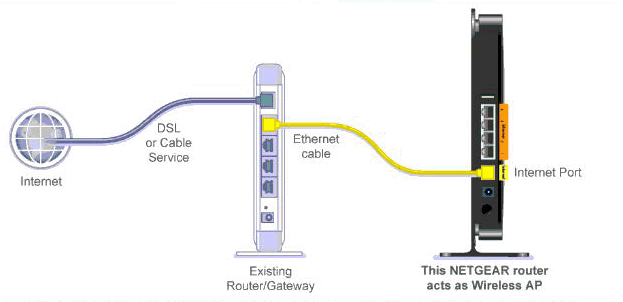
Before you start setting up your Netgear router as an access point, make sure you have the following: * A Netgear router (any model that supports access point functionality) * A main router or gateway (this will be the primary source of internet access) * An Ethernet cable (to connect the Netgear router to the main router) * A computer or device with a web browser (to access the Netgear router's web interface)Step 1: Connect the Netgear Router to the Main Router