Router Setup for Multiple Devices: A Comprehensive Guide
Are you tired of slow and patchy Wi-Fi connections in your home or office? Do you want to improve your network coverage and support more devices? Setting up multiple routers can be an effective solution. In this article, we will guide you through the process of router setup for multiple devices, covering the benefits, hardware requirements, and step-by-step instructions for implementing a seamless and high-performance network.
Benefits of Router Setup for Multiple Devices
The primary benefits of setting up multiple routers include:
- Extended network coverage: By adding additional routers, you can cover larger areas and eliminate dead zones.
- Improved network performance: Multiple routers can divide the network load, reducing congestion and improving speeds for multiple devices.
- Increased device support: With multiple routers, you can connect more devices, making it ideal for large families or small businesses.
- Enhanced security: By creating a separate network for guests or specific devices, you can improve security and prevent unauthorized access.
Hardware Requirements
Before setting up multiple routers, make sure you have the following hardware:
- Primary router: This is the main router provided by your internet service provider (ISP).
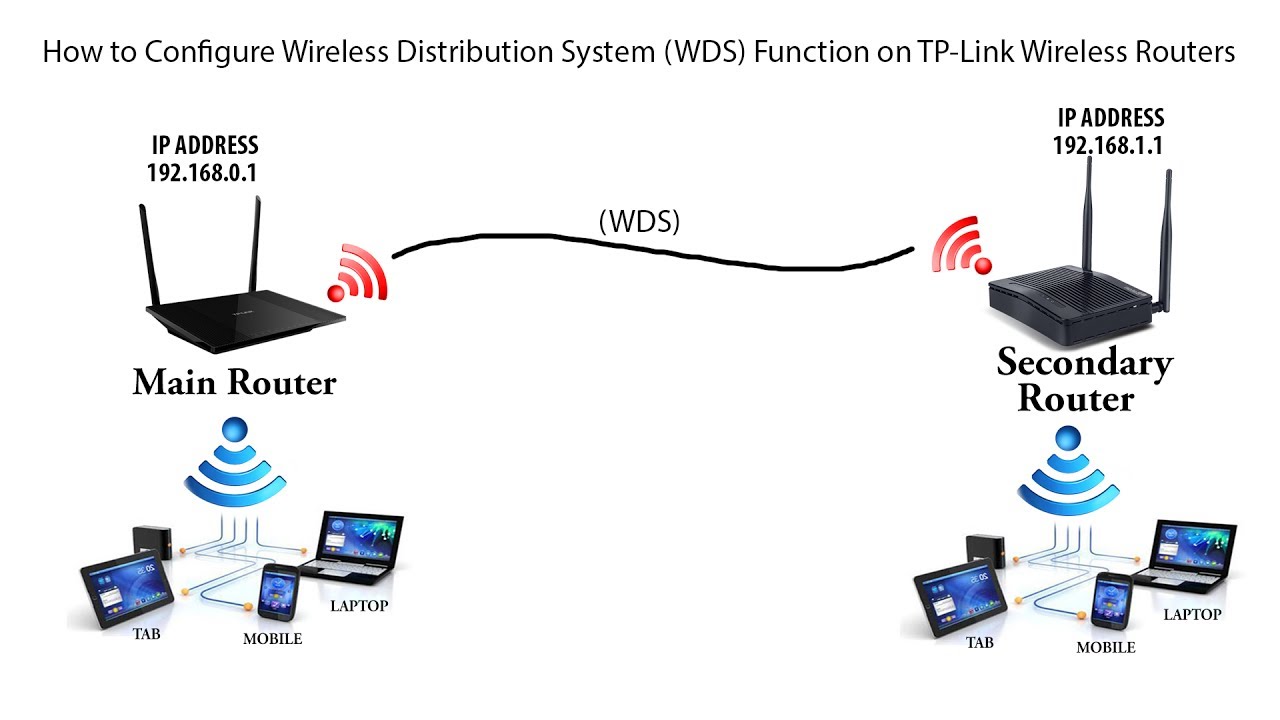
- Additional routers: You can either purchase separate routers or use a router bridge or router extender.
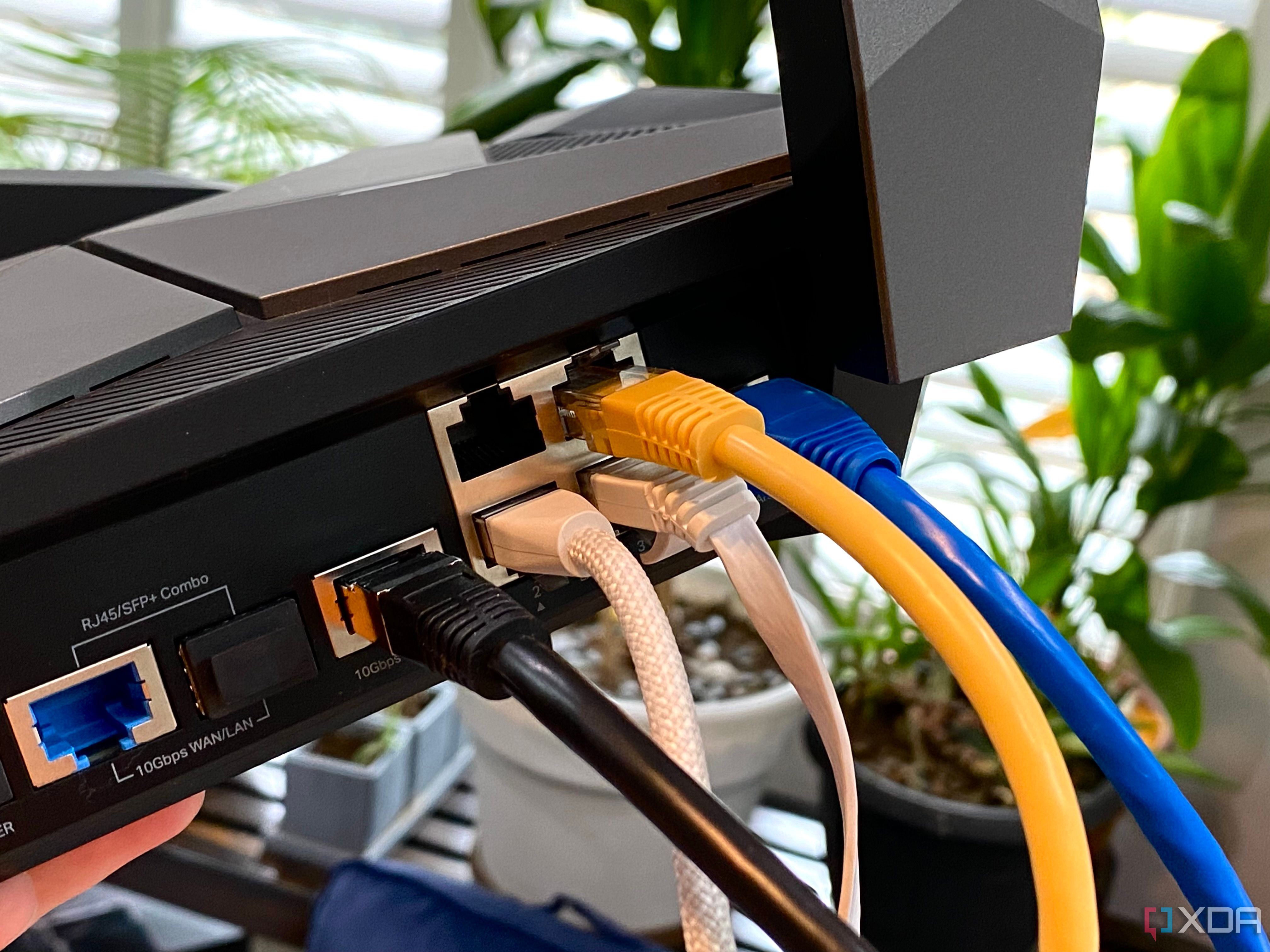
- Ethernet cables: You will need Ethernet cables to connect the additional routers to the primary router.
- Power supplies: Each router will require a separate power supply.
Step-by-Step Instructions
Follow these steps to set up multiple routers:
Step 1: Connect the Primary Router
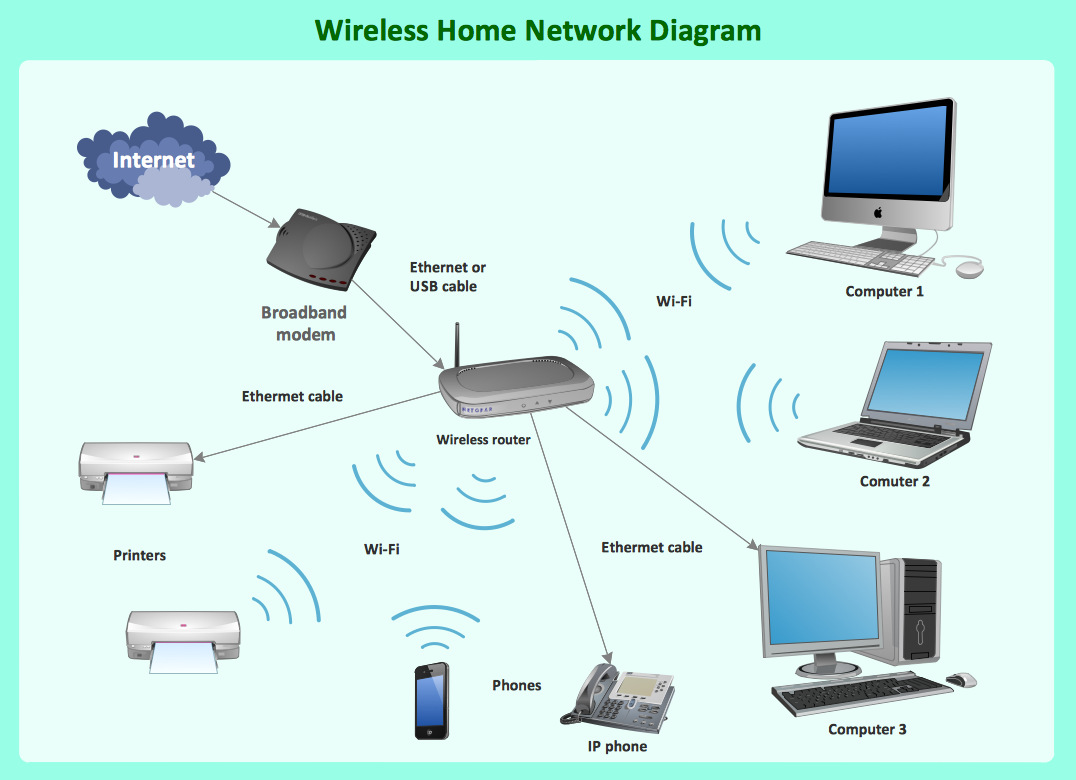
Connect the primary router to the modem and power it on. Ensure that the router is configured with the correct IP address, subnet mask, and default gateway.
Step 2: Connect the Additional Routers
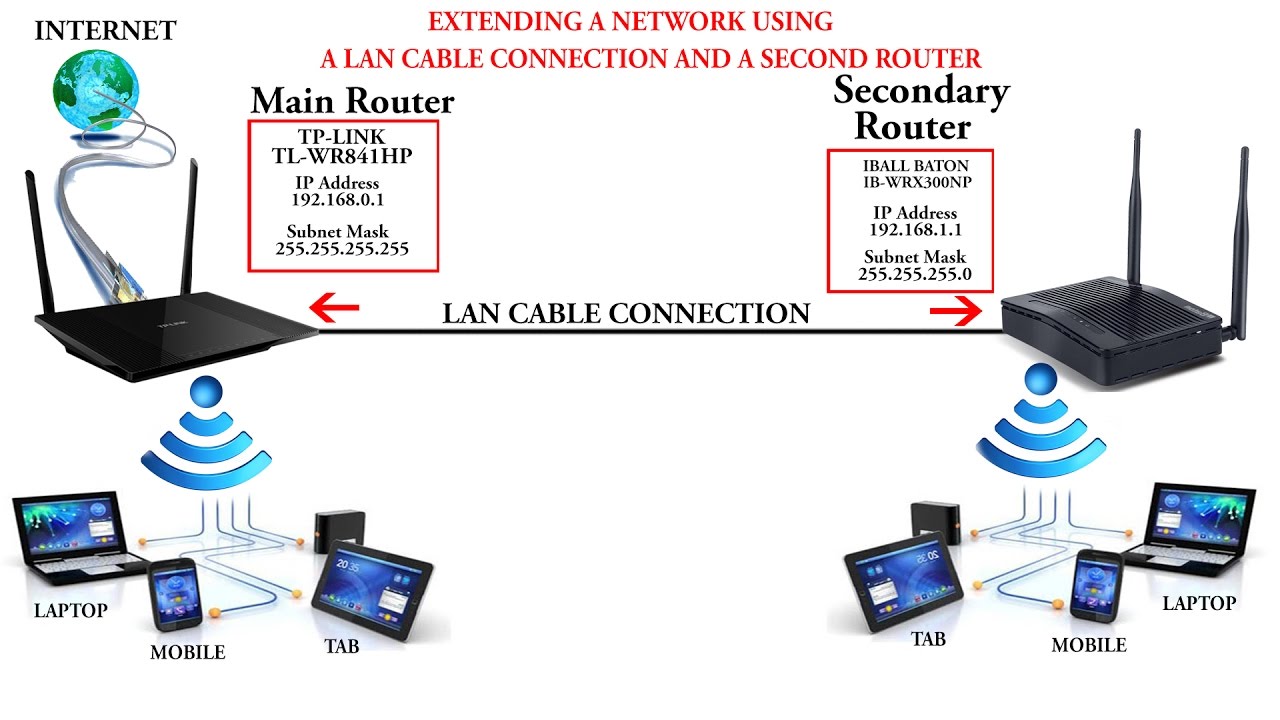
Connect the additional routers to the primary router using Ethernet cables. Make sure to connect the WAN port of the additional router to a LAN port on the primary router.
Step 3: Configure the Additional Routers
Configure the additional routers with separate SSIDs (network names) and passwords. Ensure that each additional router has a unique IP address and subnet mask.
Step 4: Set Up VLANs (Optional)

If you want to create separate networks for guests or specific devices, you can set up VLANs (Virtual Local Area Networks) on the primary router.
Step 5: Test the Network
Test the network by connecting devices to the additional routers and checking for signal strength and speed.
Step 6: Optimize the Network
Optimize the network by adjusting the channel width, frequency, and other settings to ensure the best possible performance.
Conclusion
Setting up multiple routers can be an effective solution for improving network coverage, performance, and security. By following the steps outlined in this article, you can create a seamless and high-performance network that supports multiple devices. Remember to optimize the network by adjusting settings and testing for signal strength and speed.
Common Router Setup Mistakes to Avoid
When setting up multiple routers, avoid the following common mistakes:
- Not configuring the secondary routers with separate SSIDs and passwords.
- Not connecting the secondary routers to the primary router using Ethernet cables.
- Not testing the network for signal strength and speed.
- Not optimizing the network by adjusting settings.
Best Router Setup Tools for Multiple Devices
When setting up multiple routers, use the following tools to simplify the process:
- Router configuration software (e.g., ASUS Router App, Linksys Smart Wi-Fi).
- VLAN setup tools (e.g., Cisco VLAN Manager).
- Networking diagnostic tools (e.g., Wireshark).
Best Routers for Multiple Devices
When choosing routers for multiple devices, consider the following factors:
- Number of devices: Choose a router that can support multiple devices.
- Network coverage: Select a router with a strong signal strength and coverage.
- Speed: Choose a router with a fast processor and sufficient RAM.
- Security: Opt for a router with advanced security features and protocols.