Configuring Wireless Internet Setup: A Step-by-Step Guide
Having a secure, robust wireless home network setup is no longer a luxury but a necessity in today's ever-connected digital world. Whether you're a tech-savvy individual or not, setting up a wireless internet connection at home can seem daunting. However, with this comprehensive guide, you'll learn how to configure a wireless internet setup like a pro, making it easy to connect all your devices and enjoy seamless internet access.
Understanding the Basics
Before we dive into the setup process, it's essential to understand the basics of modems and internet connections. A modem is the device that connects your home network to the internet service provider (ISP), and it usually comes with a router that distributes the internet signal to different devices. The router is the brain of the operation, and it's responsible for managing the wireless network.
Pre-Configuration Checklist
- Make sure you have a modem and a router (or a gateway) from your internet service provider (ISP).
- Check if you have all the necessary cables (Ethernet, power, and antenna) to connect your devices.
- Ensure your devices are compatible with the wireless network standard (Wi-Fi 5 or Wi-Fi 6).
- Familiarize yourself with the network settings and passwords.
Setting Up the Modem
Once you have your modem, follow these steps to set it up:
- Unbox the modem and carefully read the user manual.
- Connect the modem to your power source and turn it on.
- Plug in the modem's Ethernet cable to your computer's Ethernet port.
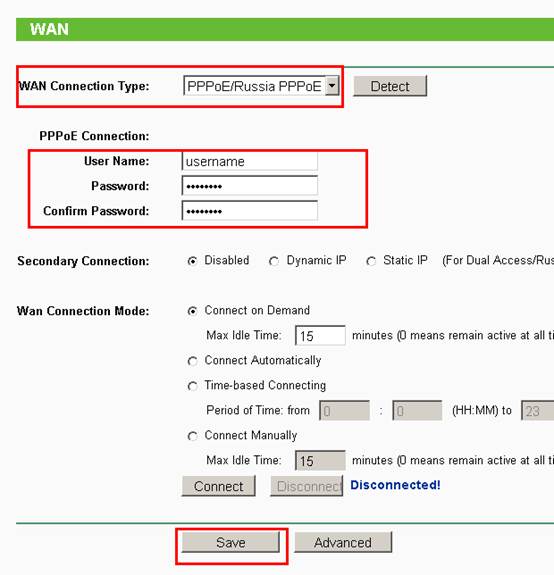
- Open a web browser and navigate to the modem's setup page (usually by typing its IP address). Use the default login credentials provided by the manufacturer.
- Change the default login credentials and set up a strong password for better security.
- Save the changes and reboot the modem to apply the new settings.

Setting Up the Router
Now that you've set up the modem, it's time to configure the router:
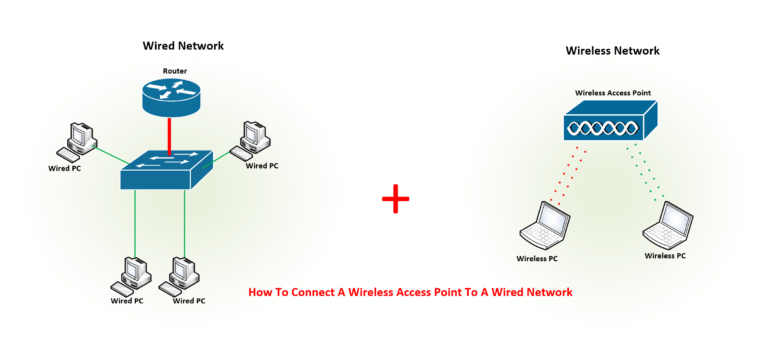
- Unbox the router and connect it to the modem using an Ethernet cable.
- Turn on the router and plug it into the power source.
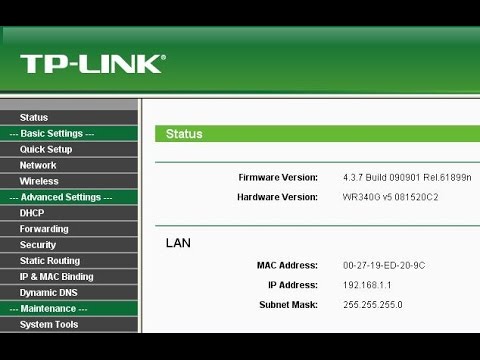
- Open a web browser and navigate to the router's setup page (usually by typing its IP address). Use the default login credentials provided by the manufacturer.
- Change the default login credentials and set up a strong password for better security.
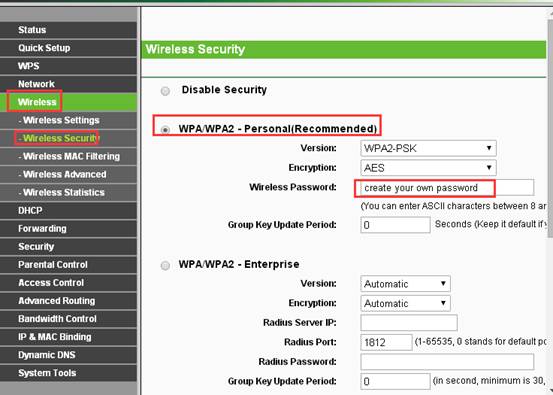
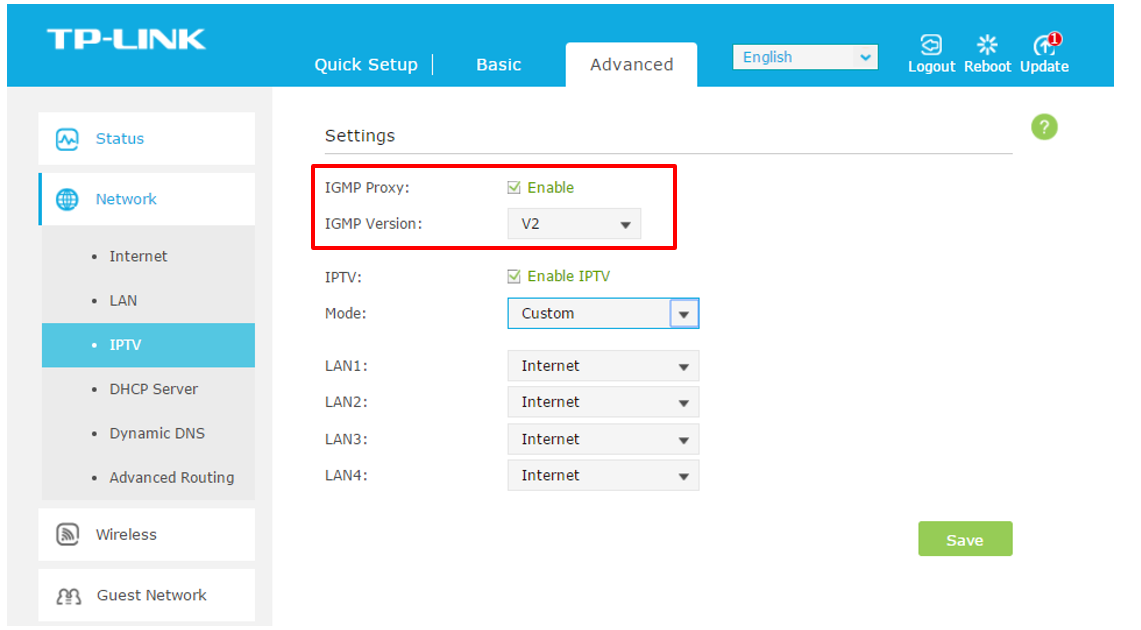
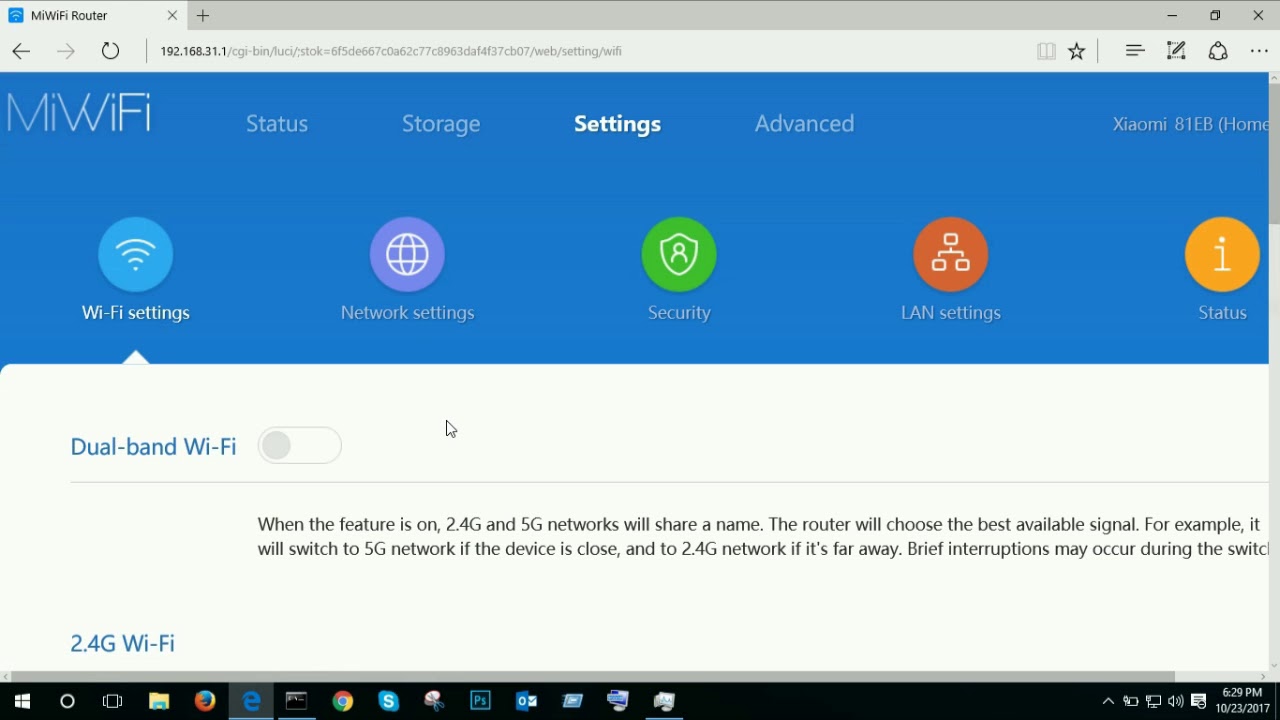
- Configure the router's wireless settings, such as the SSID (network name), channel, and password.
- Save the changes and reboot the router to apply the new settings.
Securing Your Wireless Network
To ensure your wireless network is secure, follow these best practices:
- Change the default admin password and set up a strong password.
- Set up a guest network for visitors or IoT devices.
- Enable WPA2 (or WPA3) encryption and set up a strong password.
- Regularly update your router's firmware to fix security vulnerabilities.
- Use a virtual private network (VPN) to encrypt your internet traffic.


:max_bytes(150000):strip_icc()/3-5abcf226fa6bcc0036668782.png "How to set up WiFi at home with NetSpot")

![[Wireless Router] How do I enter my ASUS router's setting page using ...](https://static.tp-link.com/resources/UploadFiles/Images/How_to_configure_TCPIP_Properties_of_the_Wireless_Connection_on_my_computer_Windows_XP_Vista_7_8_Mac_image020.jpg "[Wireless Router] How do I enter my ASUS router's setting page using ...")
