Router Access Point Setup For Home: A Comprehensive Guide
When it comes to setting up a home network, understanding the difference between a router and an access point is crucial. A router is a device that manages multiple devices on the network, while an access point is a simple extension of the Wi-Fi network, creating additional wireless access in a specific area. In this article, we'll take a closer look at setting up a router as an access point to extend your network coverage and optimize your Wi-Fi experience.
What is a Router Access Point?
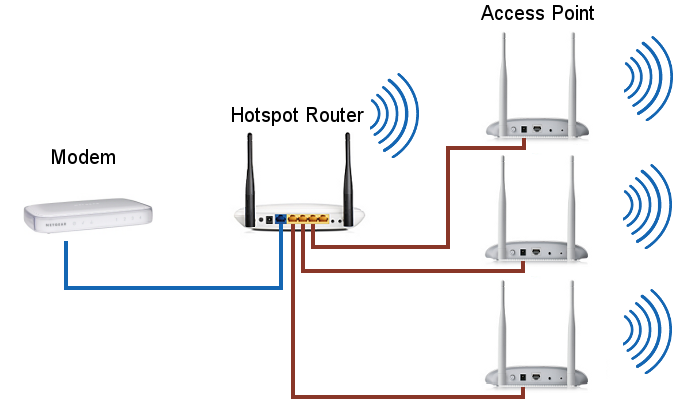
A router access point is a device that connects your wired network to a local area network, allowing devices to connect wirelessly. It's essentially a networking device that allows client devices to connect wirelessly to a local area network. But, doesn't a router also do the same? Not exactly. A router connects your devices to the internet and directs network traffic, while an access point is specifically designed to extend the coverage of an existing network.
Why Set Up a Router as an Access Point?
Setting up a router as an access point can be beneficial in several ways:
- Eliminate Wi-Fi dead zones: By extending the coverage of your existing network, you can eliminate dead zones and ensure reliable connectivity throughout your home.
- Improve network performance: By reducing the number of devices connecting to the main router, you can improve network performance and reduce congestion.
- Save money: By repurposing your old router, you can save money on expensive mesh systems or extenders.
Gathering the Necessary Equipment
To set up a router as an access point, you'll need the following equipment:
- An old router that you no longer need
- An Ethernet cable to connect the router to the main modem
- A power supply for the router
Step-by-Step Instructions
Here's a step-by-step guide to setting up a router as an access point:

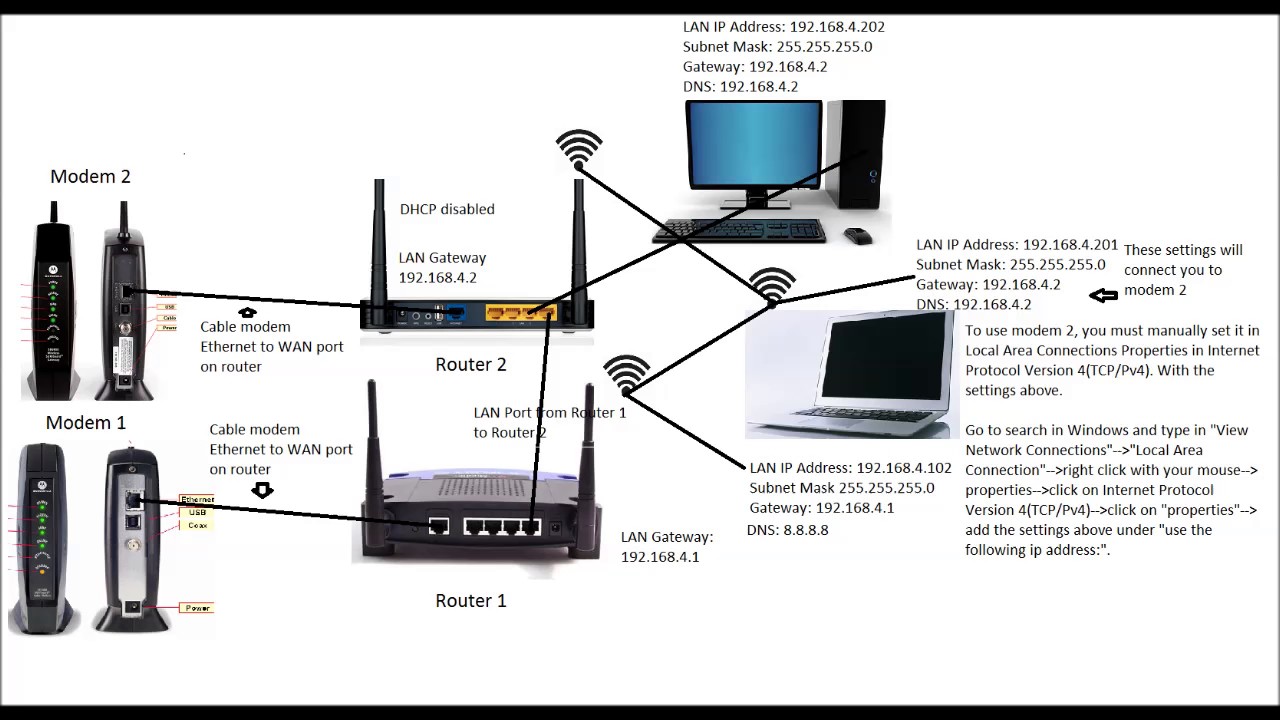
- Log into the router using the default IP address (usually 192.168.1.1) and the default login username and password (both usually "admin").
- Set the router as an access point by disabling the router feature.
- Configure the access point settings, such as the network name and security.
- Connect the router to the main modem using an Ethernet cable.
- Power on the router and test the connection to ensure it's working properly.
Best Practices and Tips
Here are some best practices and tips to keep in mind when setting up a router as an access point:
- Use a wired connection between the access point and the main modem to ensure a stable connection.
- Configure the access point settings to match the main network settings to ensure seamless connectivity.
- Use a high-gain antenna to improve the range and coverage of the access point.
Conclusion
Setting up a router as an access point is a great way to extend the coverage of your existing network, eliminate Wi-Fi dead zones, and improve network performance. By following the step-by-step instructions and best practices outlined in this article, you'll be able to set up a router access point and enjoy a more reliable and efficient home network.
Common Router Access Point Brands
Some popular router access point brands include:
- TP-Link
- Netgear
- Linksys
- eero
- Google Wifi
Conclusion
In conclusion, a router access point is a useful device that can extend the coverage of your existing network and improve network performance. By setting up a router as an access point, you can enjoy a more reliable and efficient home network. We hope this article has been informative and helpful in your quest to set up a router access point for your home.