Configuring Your Home Internet Router: A Step-by-Step Guide
Understanding the Importance of a Router Configuration
The router is the backbone of every home network, providing secure internet access to all devices connected to it. A configured router ensures a stable and efficient internet connection, while a poorly configured one can lead to dropped connections, slow speeds, and security vulnerabilities. Installing and configuring a home internet router can sometimes be a bit challenging, but with the right guidance, you can do it easily.Connecting Your Router
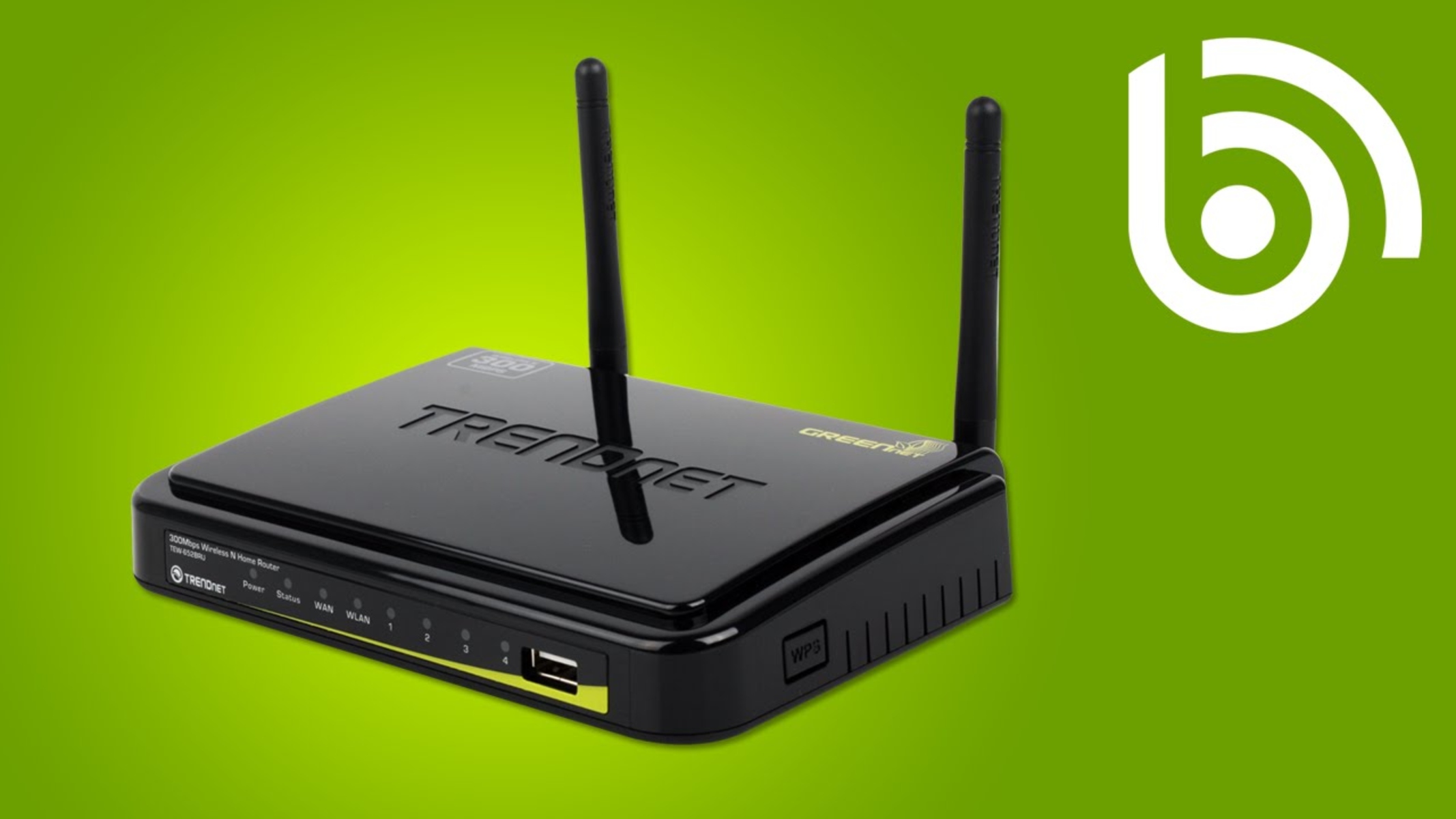
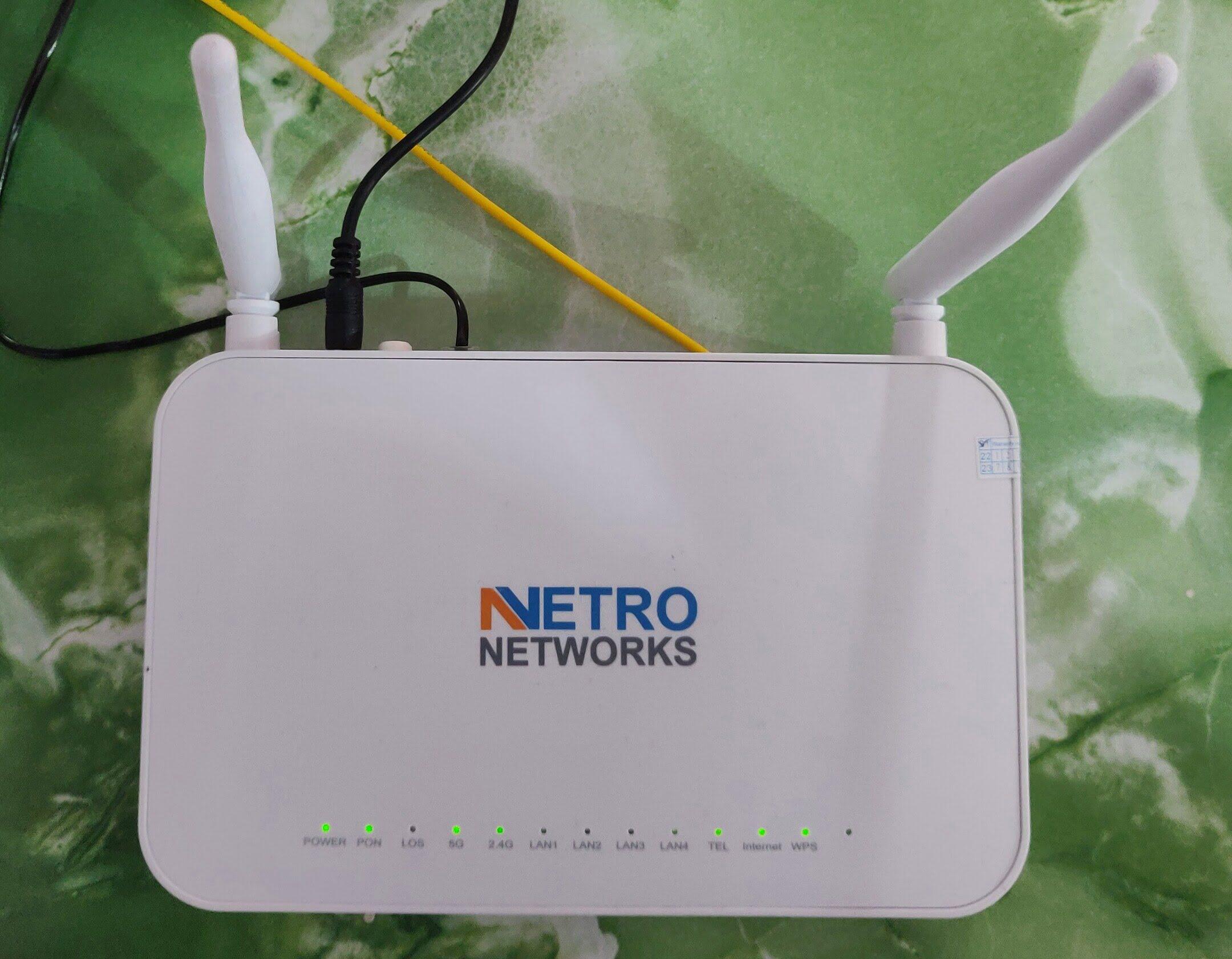
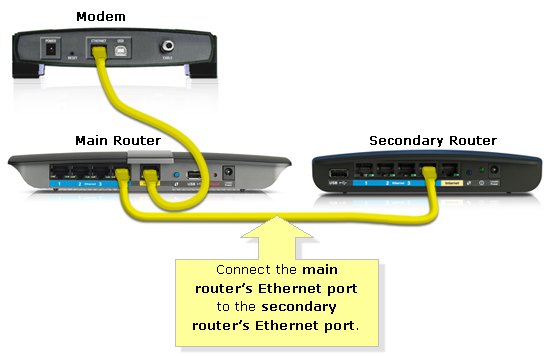
To begin, you will need to connect your router to your modem using an Ethernet cable. This cable will provide a stable internet connection to therouter. Next, you need to connect the power cord and turn on the router. Wait for the lights on the router to stabilize before proceeding to the next step.Configuring Your Wireless Network Settings
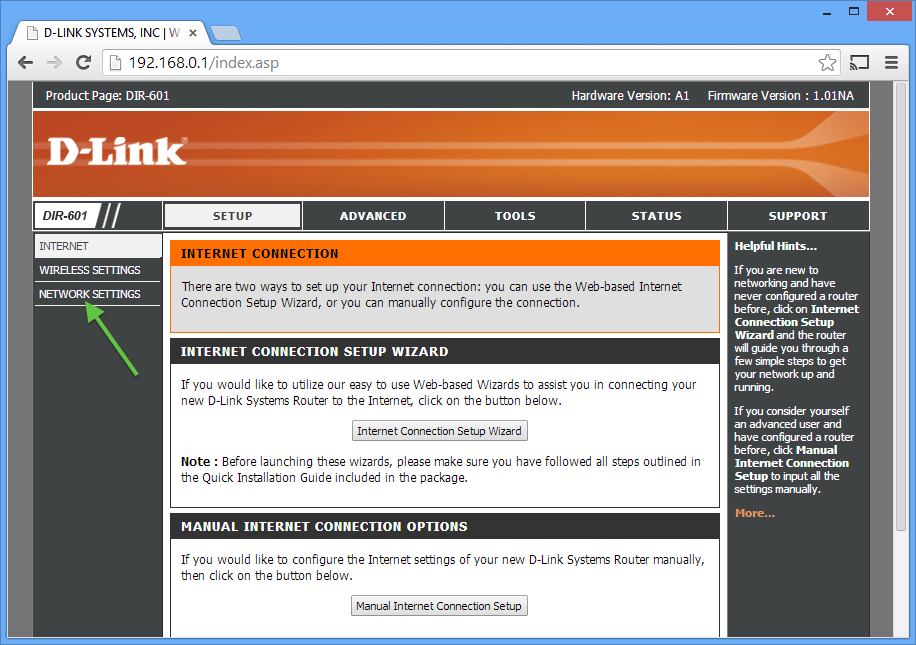
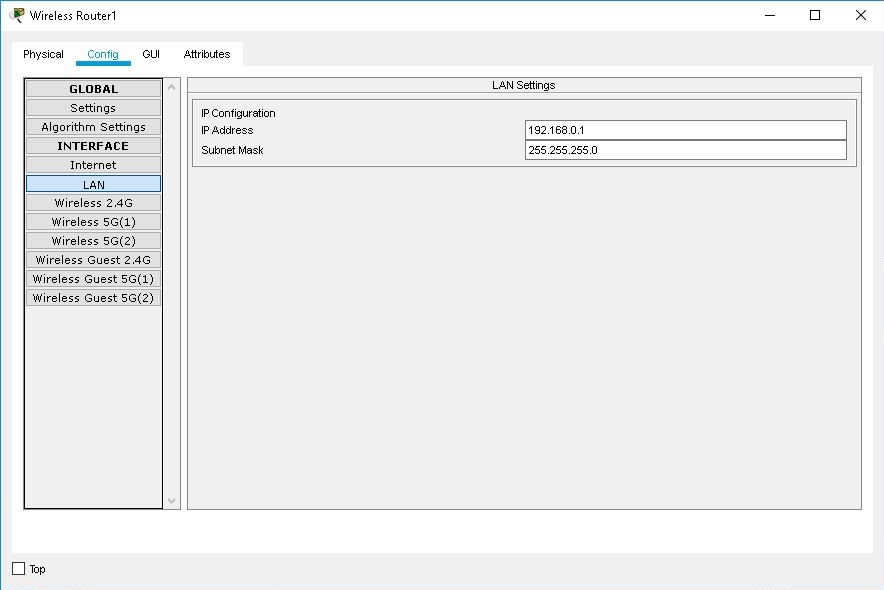
The setup wizard should guide you through the time zone selection, internet connection type, Wi-Fi name and password, and a firmware update option.Setting Up Your Wi-Fi Network
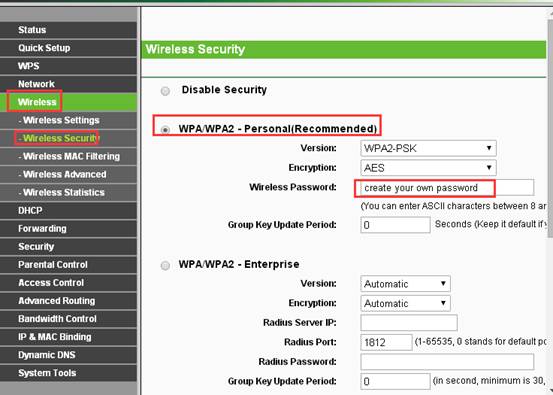
* Wi-Fi Network Name (SSID): Choose a unique and memorable name for your Wi-Fi network. This will help you easily identify your network among other nearby networks. * Network Password: Set a strong and secure password to prevent unauthorized access to your network. * Channel Width: Choose between 20MHz, 40MHz, or 80MHz channel width to optimize your network performance. * Wireless Channel: Select a channel to use for your Wi-Fi network. You can choose from a range of channels, but it's best to select a channel that is not widely used by other devices in your area. * Network Security: Enable network security to prevent unauthorized access to your network. You can choose from WPA2 or WPA3 encryption methods.Advanced Configuration Options
* Quality of Service (QoS):